TD Ordering Setup & Maintenance Guideline (Backend)
Mobile User
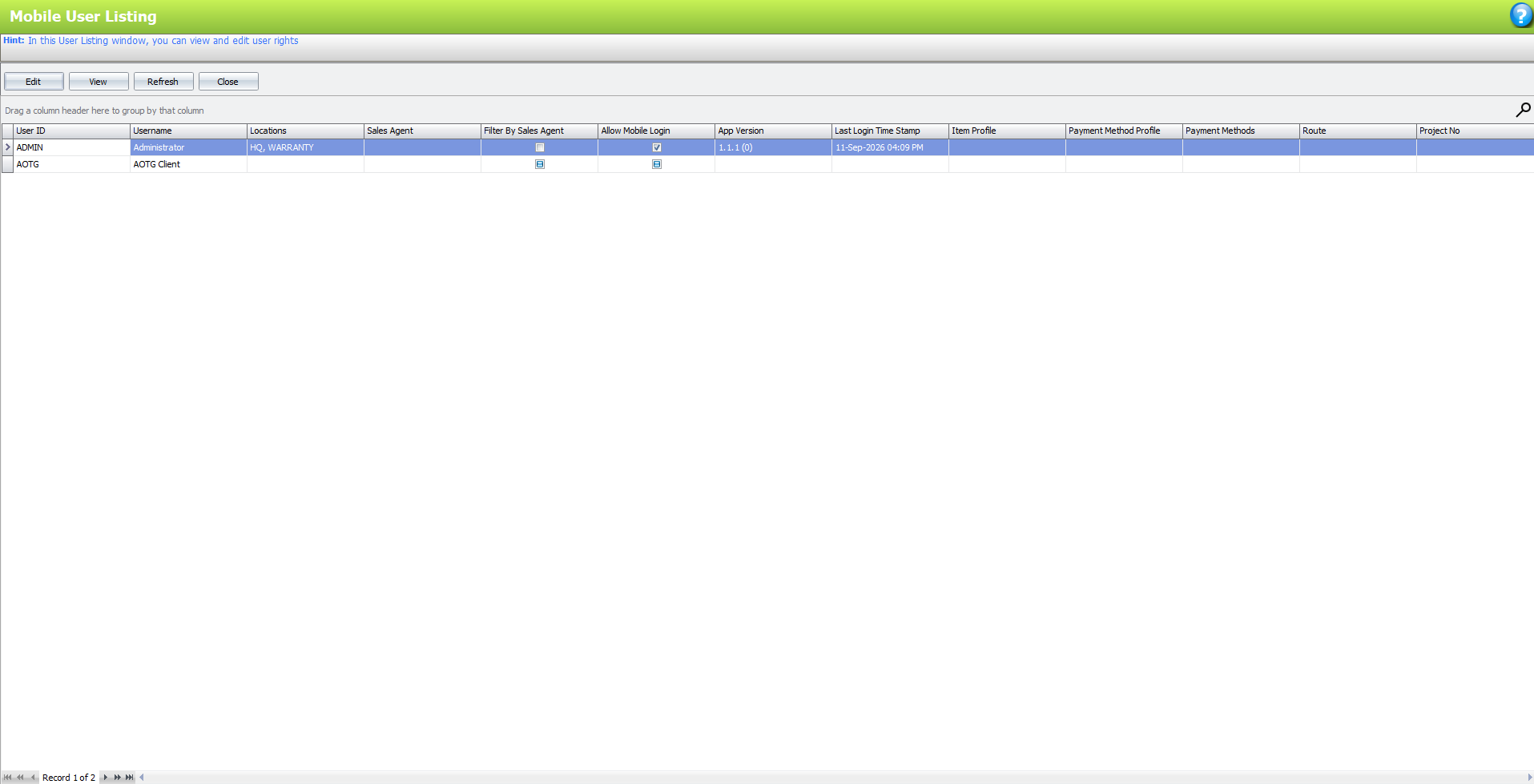
This is the page for “Mobile User”.This is the “Mobile User” page, used to control some information available to each mobile user, including location visibility and other mobile-related settings.
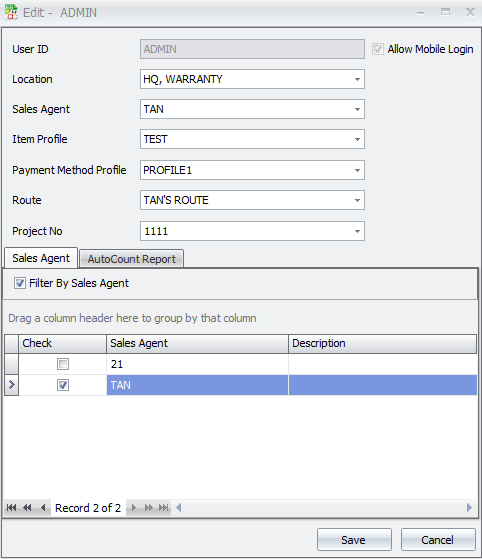
Example for this “ADMIN” user. Can do the settings such as:
- Location: For this user can see which location. When user got Location A, B and HQ And user only have “HQ” and "WARRANTY" location access right, when they see the stock/create order only can see specific location instead of all location.
- Sales Agent: This “ADMIN” user is belong to which sales agent.
- Item Profile: This item profile can set on backend “TD Ordering” -> “Maintenance”-> “Item profile Maintenance”. This is to control this “ADMIN” user, can see which item in the order / stock.
- Below Sales Agent: If got ticked “check”, means this “ADMIN” users can see other “Sales Agent” in the Ranking List and other details.
Mobile User Access Right Maintenance
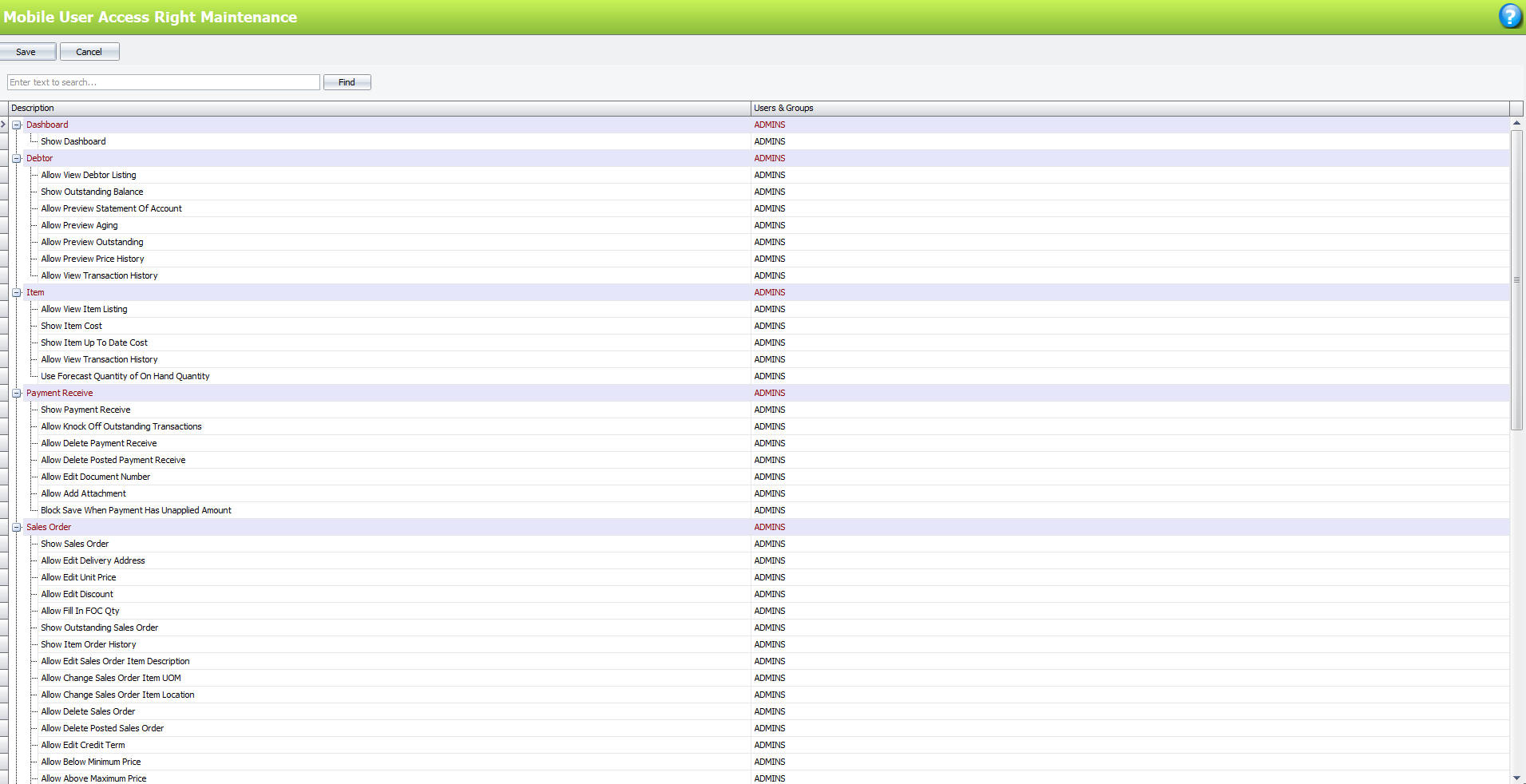
In this page can do the “Access Right” settings for the specific user.
Example:
If for this “ADMIN” user, do not want to let “ADMIN” user see the “DASHBOARD”
just remove the access right for it, and “ADMIN” won’t have the access right to see
the page anymore.
Remark: Do not forget to click “SAVE”, if got any changes
Item Min Max Price Maintenance
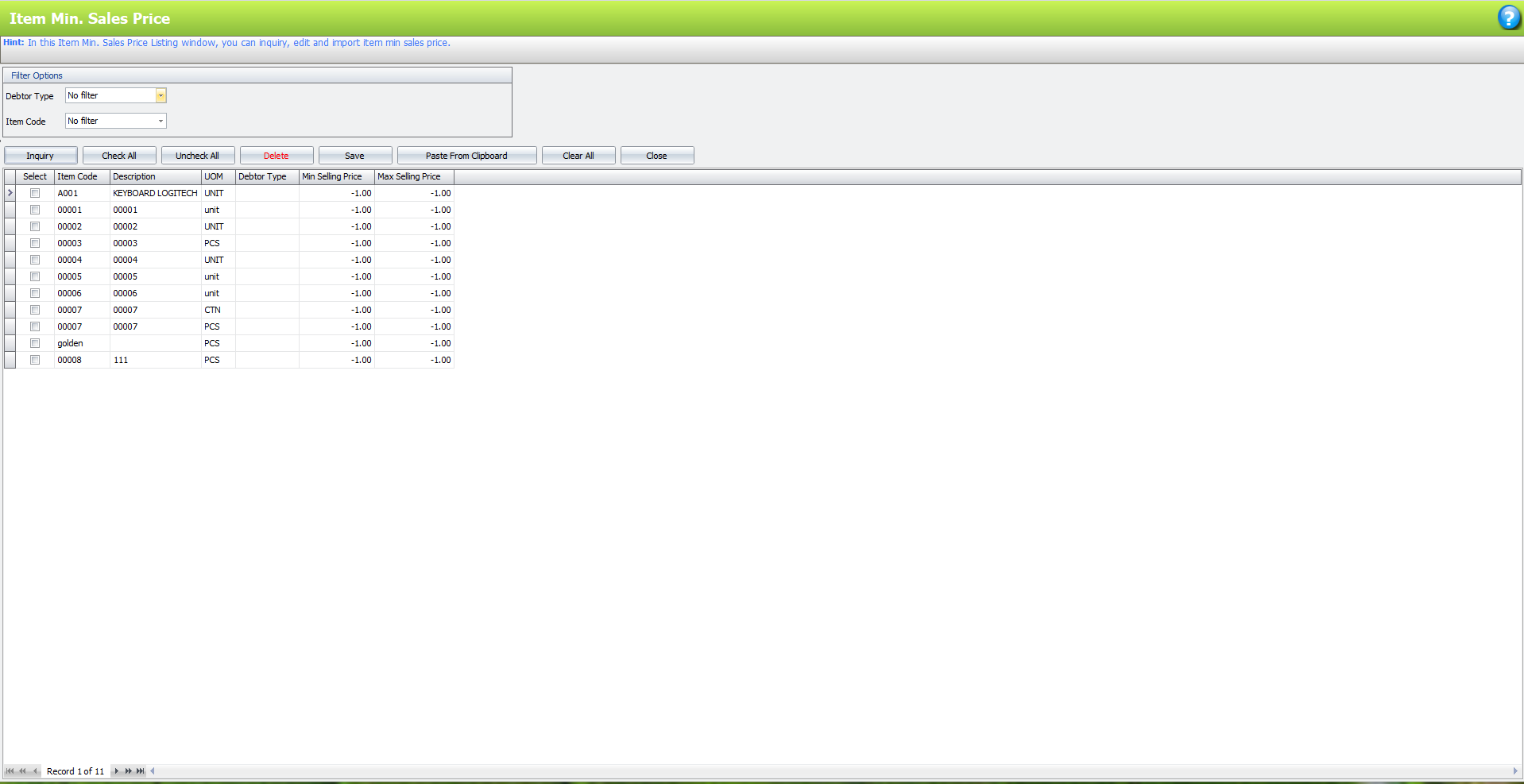
This is the page for “Item Min Max Price Maintenance”.
Debtor Type == Can filter by the debtor type.
Item Code == Can filter by the Item Code.
When click “Inquiry” will show the result based on the filter options, and user may set
the “Min Selling Price” and “Max Selling Price” for specific items.
Item Profile Maintenance
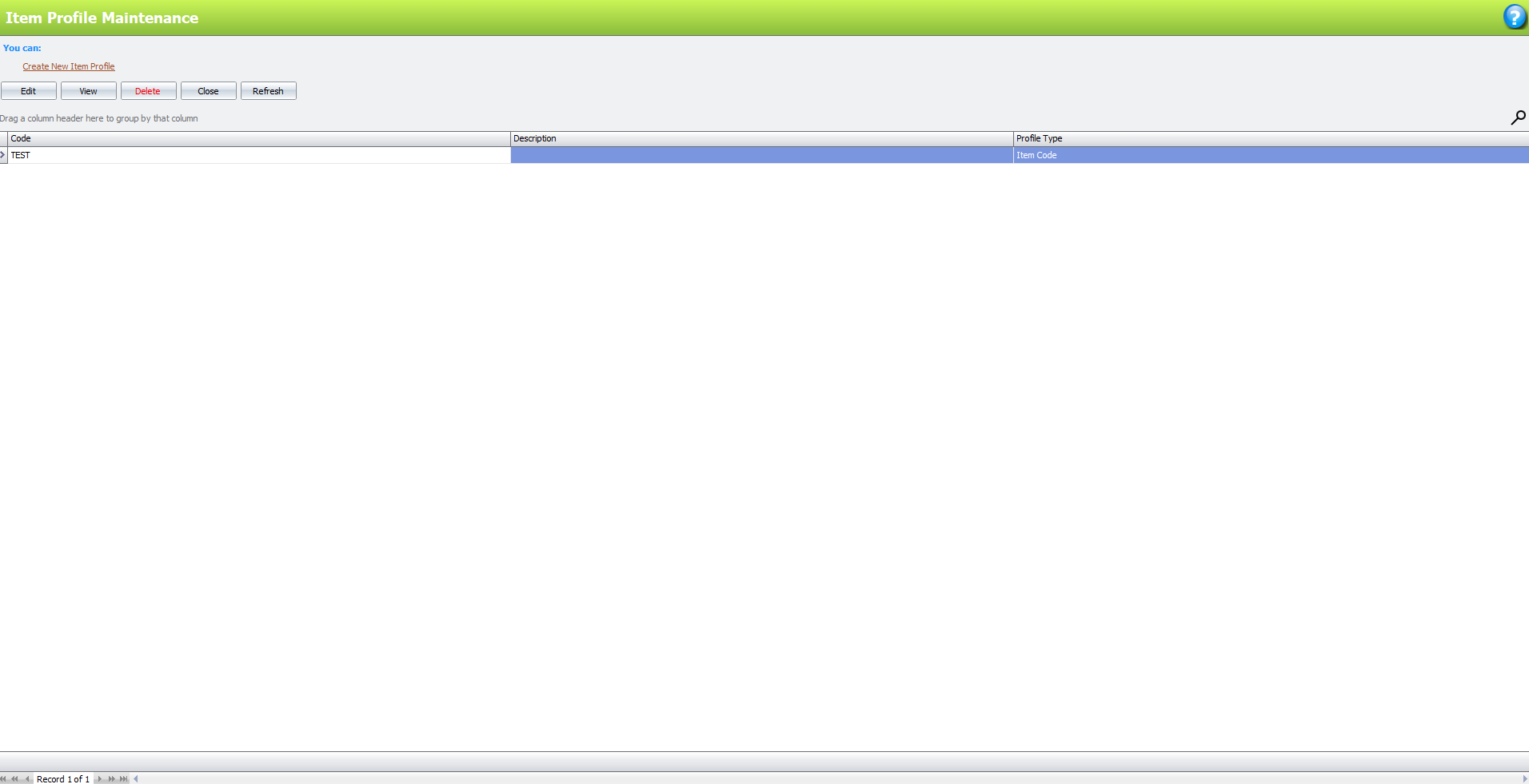
This is the page for “Item Profile Maintenance”. This can be limited which “Sales
Agent”, can only see the specific items.
Create New Item Profile
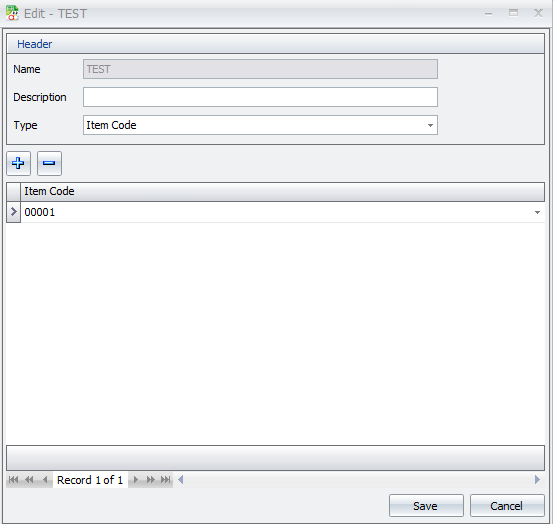
If that specific Sales Agent was setting using this “TEST” Item profiles, at the TD
ORDERING APP will only can see “00001” Only, other item won’t able to see it.
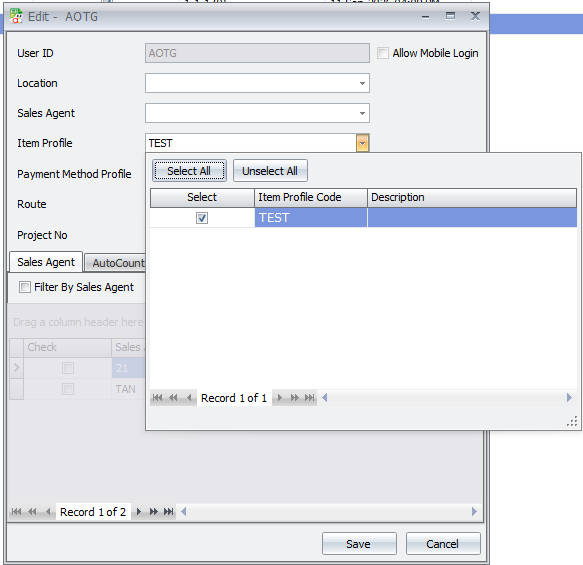
Remark: Settings may be done in “TD Ordering” -> “Mobile User” -> “Edit” and
choose Item profile then save it
Payment Method Profile Maintenance
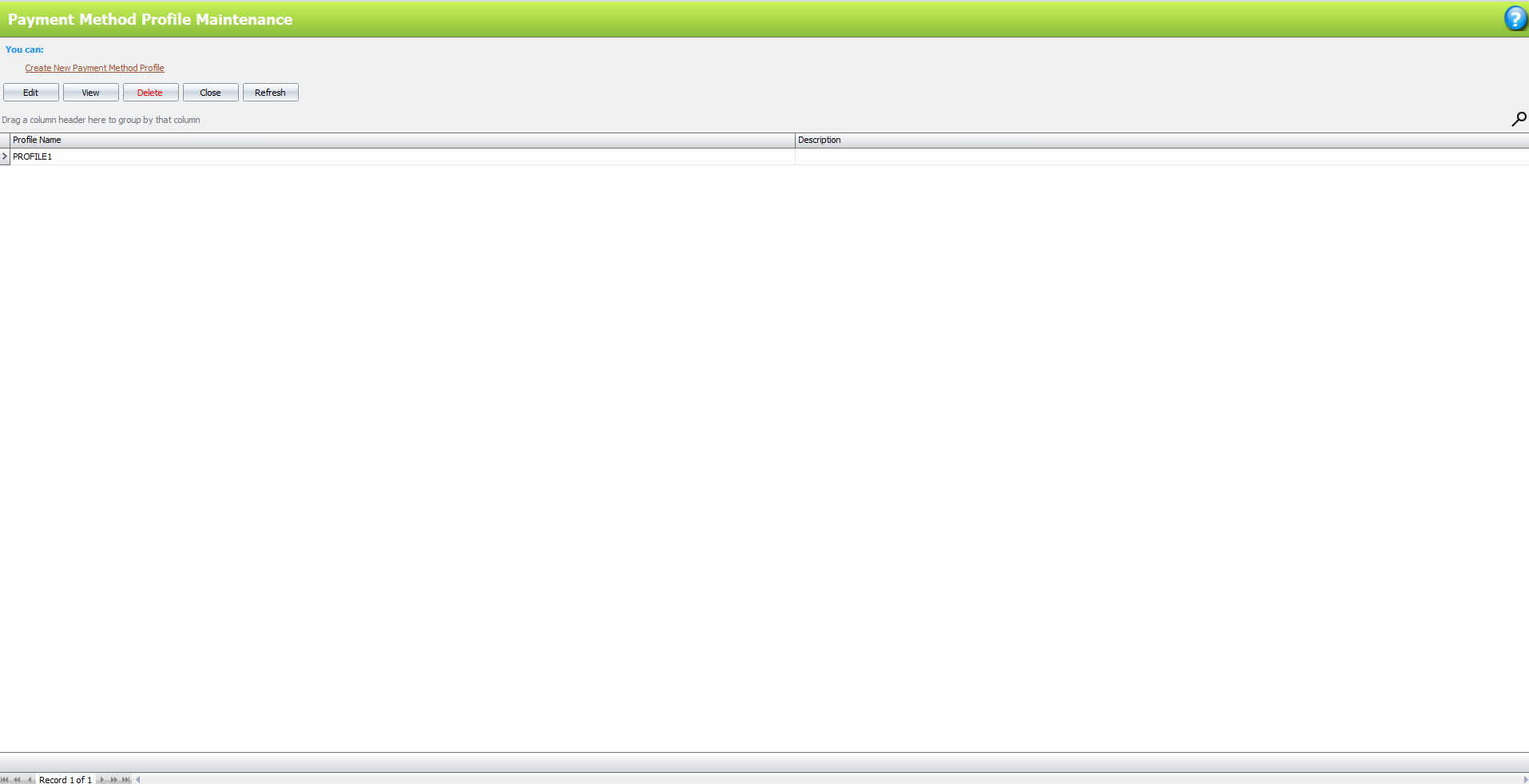
This is the page for “Payment Method Profile Maintenance”. This can be limited which “Sales
Agent”, can only see and use the specific payment methods when issue payment received.
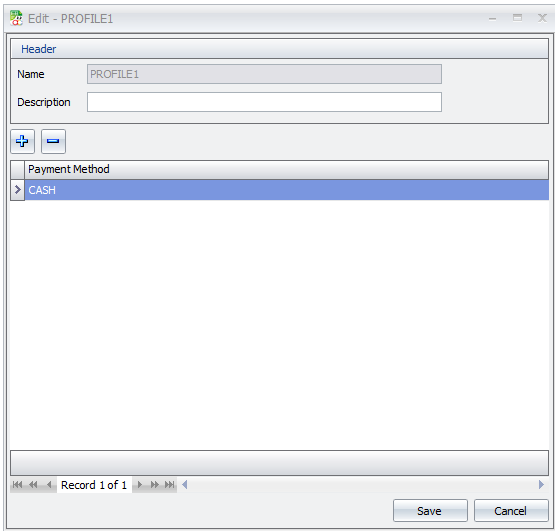
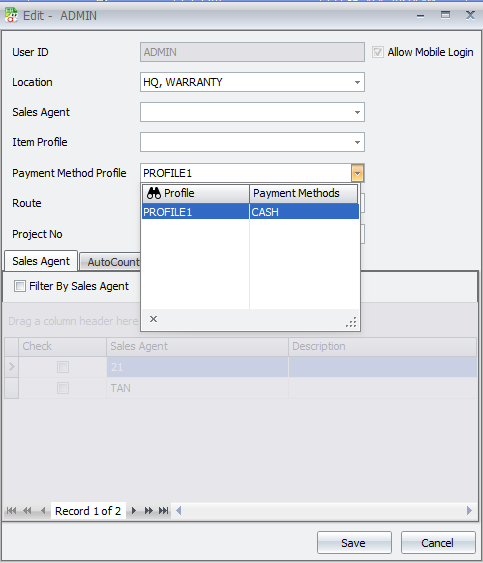
If that specific Sales Agent was setting using this “PROFILE1” payment method profiles, at the TD
ORDERING APP will only can see “CASH” Only, other payment methods won’t able to see it.
Remark: Settings may be done in “TD Ordering” -> “Mobile User” -> “Edit” and
choose Payment Method Profile then save it
Route
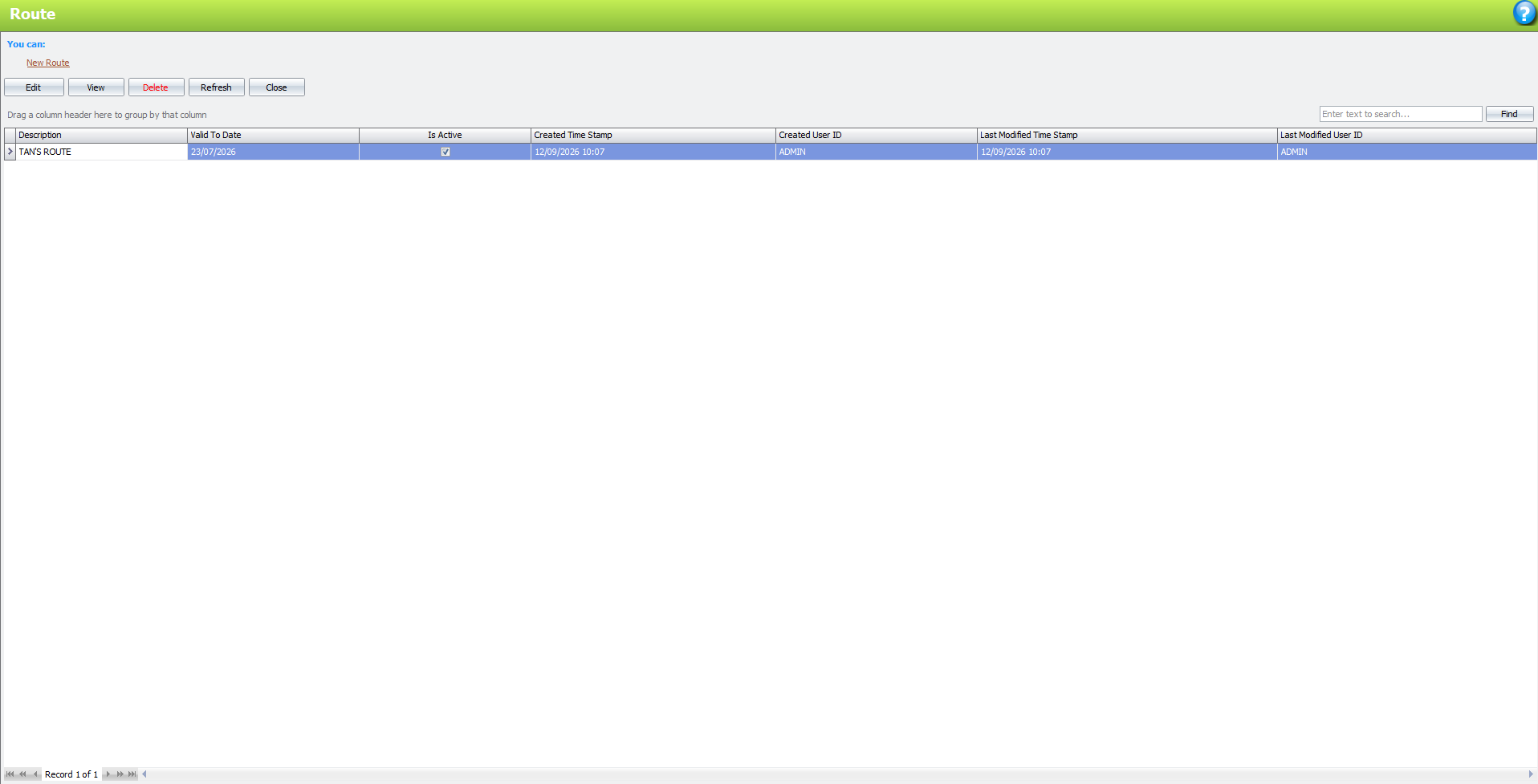
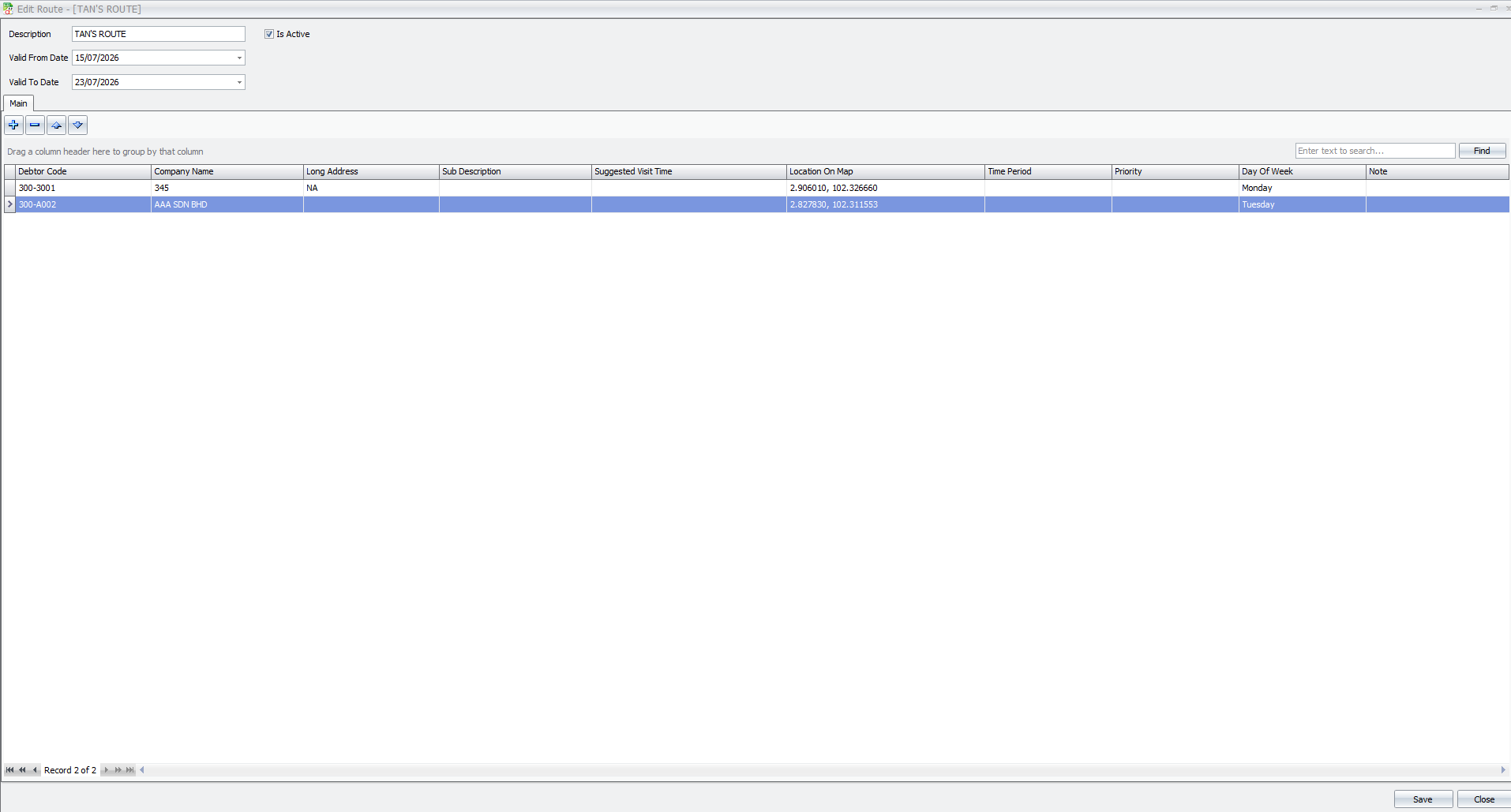
This is used to pre-define the customer visit route for each Sales Agent.
Settings
Posting Option
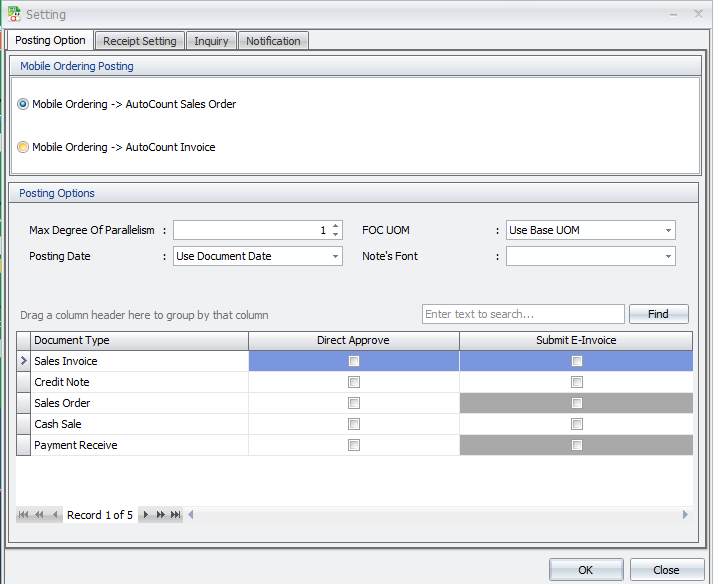
Mobile Ordering Posting:
This is to set the Sales Order want to post to “Autocount Sales Order” or “Autocount
Invoice”
Posting Options
- Max Degree of Parallelism : Controls the number of posting processes that can run concurrently.
- Posting Date : Determines which date is used when posting the transaction to AutoCount.
- FOC UOM : Determines the Unit of Measurement (UOM) used for Free-of-Charge (FOC) items.
- Note's Font : Sets the font used for transaction notes.
- Direct Approve : Automatically approves the document after it is posted to AutoCount.
- Submit E-Invoice : Automatically submits the document for e-Invoice processing after posting.
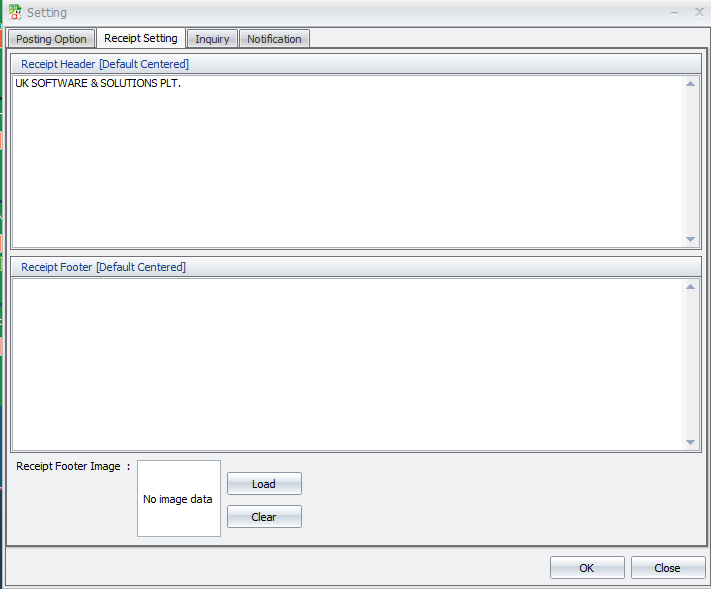
Receipt Setting
Inquiry
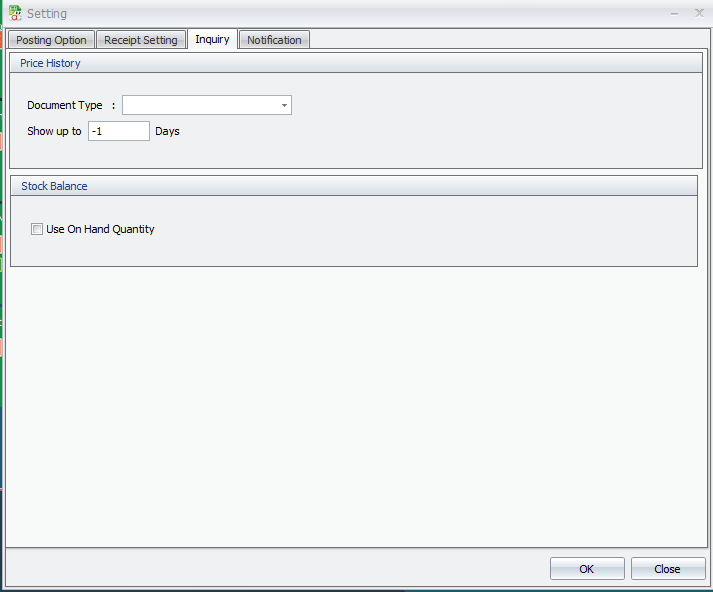
Price History
- Document Type : Selects the document type used to retrieve the price history.
- Show up to _ Days : Specifies how many days back the system will check for previous prices.
Stock Balance
- Use On Hand Quantity : Uses the item's current On Hand Quantity when displaying stock balance.